$ get started with the Obsidian Attachment Placement plugin
Obsidian Attachment Placement is a community plugin that gives you fine-grained control over where new attachments are saved in your vault. Instead of every attachment landing in a single global folder, you define placement rules per folder. The plugin walks up the directory tree from the current note and applies the first rule it finds.
Install it from the Obsidian community plugins directory, then configure it via Settings → Attachment Placement.
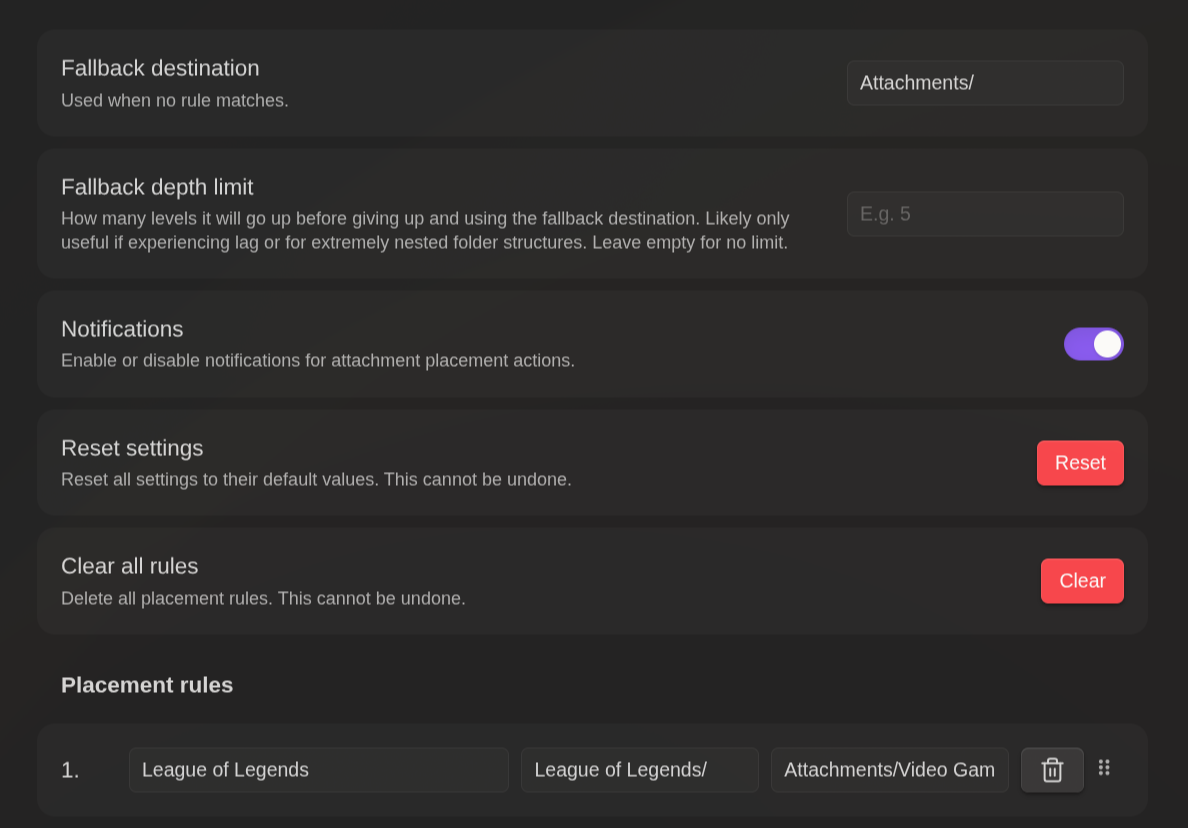
Fallback Destination |
Default folder used when no placement rule matches. Leave blank to use Obsidian's built-in default. |
Fallback Depth Limit |
How far up the folder hierarchy the plugin searches before giving up. 0 = current folder only; higher values check parent folders too. |
Notifications |
Toggle popup alerts when the plugin places an attachment. |
Reset Settings |
Restores all settings to defaults. |
Clear All Rules |
Removes every placement rule you have defined. |
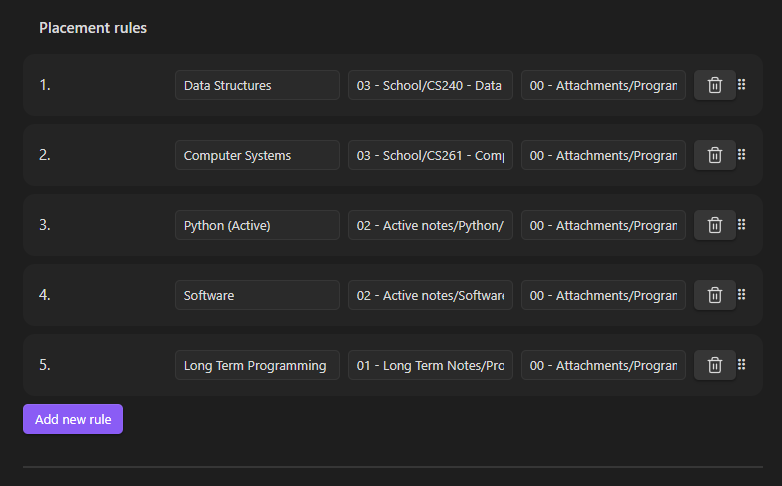
The plugin settings panel. Add placement rules by specifying a folder path and a destination. Whenever you drop an attachment into a note inside that folder, it lands in the destination you specified.
An example vault structure to illustrate how rules are resolved. If you are editing
Queue.md inside CS240 - Data Structures and paste an image, the plugin
checks for a rule on that folder first, then walks up to School, then the vault root,
before falling back to the default destination.
Obsidian Vault
├─ 00 - Attachments
│  └─ Programming
│
├─ 01 - Long Term Notes
│  └─ Programming
│
├─ 02 - Active notes
│  ├─ Python
│  └─ Software Development
│
└─ 03 - School
   ├─ CS240 - Data Structures
   │  └─ Queue.md
   └─ CS261 - Computer Systems
 hunter baker